
10 Best Internet Filters for Kids' Phones and Tablets in 2026
Best Internet Filters
ALL TOPICS
- How to Filter a Website?
- Internet Filter Reviews
- Apps to Filter Websites

Oct 16, 2026 Filed to: Web Filtering Proven solutions
Internet filters for kids help parents limit websites, explicit content, apps, or online access on a child’s device. For phones and tablets, the most useful options combine category-based web filtering with custom allow/block lists, SafeSearch or search controls, app restrictions, screen-time rules, and settings that children cannot easily change.
No internet filter is perfect. The right choice depends on the devices your family uses, what you need to filter, and whether you want simple website blocking or broader parental-control features such as app limits, location, and activity reports.

Last checked: September 2, 2026. Product availability, major web-filtering features, and platform limitations in this guide were checked against current official product or support pages. Pricing and feature bundles can change, so confirm the current offer before purchasing.
How We Chose Internet Filters for Kids and Families
This guide focuses on the search intent behind best internet filter for kids, family internet filter, and phone filter for internet: parents comparing practical ways to reduce access to inappropriate web content on children’s devices. The list is organized by use case rather than a lab-tested score.
- Web filtering: category filtering, custom website rules, SafeSearch, or other controls that directly affect browsing.
- Phone and tablet fit: whether the product works on common child devices and where platform limitations apply.
- Parent controls: app blocking, schedules, screen-time rules, alerts, and settings protection.
- Current availability: discontinued products are not kept in the main recommendation list.
- Limitations: a useful filter should explain what it cannot reliably control, especially across browsers, apps, or operating systems.
10 Best Internet Filters for Kids' Phones and Tablets in 2026
Note: “Best” here means best fit for a family use case. The order is editorial organization, not a claim that one product is universally safer or more effective than every alternative.
1. FamiSafe — Best for Combining Web Filtering with Broader Family Controls
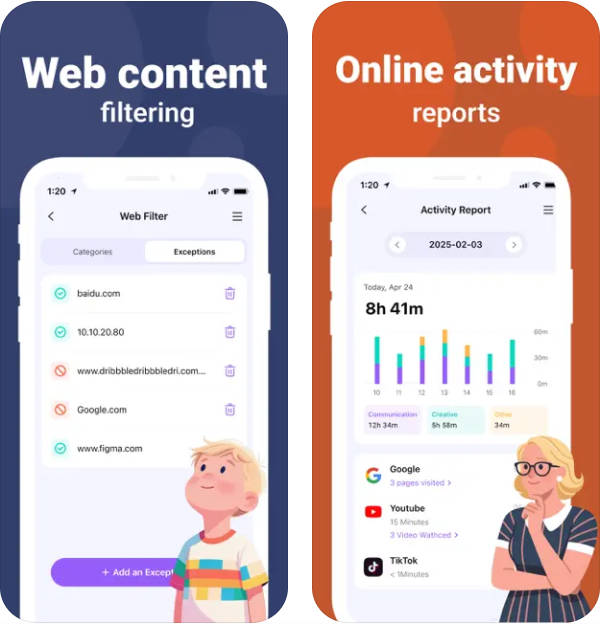
FamiSafe Web Filter is designed for parents who want website controls alongside other parental-control features. FamiSafe’s current documentation says its Web Filter can block sites from an internal suspicious-site database and lets parents add websites to allow or block lists. Its web-filter feature page also describes category filtering and Safe Search controls.
For families comparing a phone internet filter, the main advantage is having web filtering in the same family-control suite as features such as app blocking, screen-time controls, and location tools. As with other parental-control apps, feature availability can differ by platform, so check the current device-specific support before setup.

- Location Tracking & Geo-fencing
- App Blocker
- Web Filtering
- Screen Time Control
- Smart Parental Control Setting
Useful filtering features:
- Website category filtering and manual exceptions.
- Safe Search controls for reducing explicit search results.
- App and screen-time controls in the broader FamiSafe suite.
- Parent-managed rules that can be adjusted as a child gets older.
2. Qustodio — Best for Detailed Rules and Reports
Qustodio parental controls combine web filtering with app controls, screen-time rules, reports, and alerts. Qustodio’s current plan comparison lists Safe Search, web filtering, games and app blocking, web-activity alerts, custom app and website rules, and activity reports.
Best fit: parents who want granular rules and visibility rather than a simple on/off website blocker.
- Web filtering and Safe Search.
- App blocking and category controls.
- Custom routines and daily time limits.
- Activity reports and web alerts on supported plans.
Limitation: some advanced monitoring features are plan- and platform-dependent, so compare the current feature matrix for your child’s device.

3. Norton Family — Best for Web Supervision on Windows, Android, and iOS
Norton Family focuses on parental supervision features such as web rules, search supervision, time limits, reports, and device-location tools. Its Web Supervision allows parents to block unsuitable sites or show a warning before a child continues.
- Web Supervision on Windows, Android, and iOS.
- Search and video supervision on supported platforms.
- Time limits, instant lock, and activity reports.
- App supervision on Windows and Android.
Limitation: Norton’s current documentation says Norton Family cannot be installed as parental control on a child’s Mac, even though parents can manage the account from a Mac browser.

4. Net Nanny — Best for Custom Website Categories
Net Nanny lets parents set website categories to View, Alert, or Block and provides a parent dashboard for browsing activity and rule changes. This makes it useful for families who want more than a single “adult content” switch.
- Category-based internet filtering.
- Custom website blocking and allowing.
- Screen-time management and app blocking.
- Parent dashboard, alerts, and reporting.
Limitation: older versions of this article listed Android support. Net Nanny’s current US product page lists Windows, macOS, and iOS as supported platforms, so Android families should verify current availability before choosing it.

5. OurPact — Best for App Schedules and Web Restrictions on iOS/Android
OurPact supports iPhone, iPad, Android phones, and Android tablets. Its current plans combine screen-time management, app rules, location sharing, device safeguards, and web restrictions that can block adult content.
- App blocking, schedules, and screen limits.
- Web restrictions for adult content.
- Location sharing and location alerts.
- Removal/tamper safeguards on supported setups.
Limitation: OurPact’s deeper content-monitoring and screenshot-based tools are part of Premium+, so families looking only for internet filtering should compare the lower tier first.

6. Mobicip — Best for Families with Mixed Device Types
Mobicip combines website blocking, app controls, screen-time schedules, reports, and location features. Current Mobicip support pages list iPhone, iPad, Android, Kindle Fire, Mac, Windows, and Chromebook.
- Block or allow web categories, websites, phrases, and keywords.
- App and app-category controls.
- Managed schedules and daily screen-time limits.
- Activity summaries and family-location features.
Limitation: monitoring features can differ by platform; for example, some social monitoring capabilities are Android-specific.

7. Kidslox — Best for iPhone and Android Web/App Blocking
Kidslox parental control provides app blocking, web filtering, screen-time limits, schedules, reports, and location tools. Its web-filter documentation describes blocked-site categories, manual website rules, and SafeSearch/YouTube controls.
- Block websites and apps by rule.
- SafeSearch and YouTube Restricted Mode controls.
- Schedules and daily limits.
- Web activity and content-monitoring tools.
Limitation: Kidslox supports advanced desktop controls as well, but mobile and desktop capabilities are not identical. Check the current feature page for the exact child device.

8. Canopy — Best for Explicit-Content Filtering
Canopy is a more specialized internet filter. Its current product documentation emphasizes real-time detection and filtering of pornographic or explicit visual content, alongside website/app controls and screen-time features.
- Explicit-content filtering across supported websites.
- Website and app blocking.
- Screen-time and app-limit tools.
- Support for Android, iOS, Windows, macOS, and ChromeOS according to its current pricing page.
Limitation: Canopy’s strongest differentiation is explicit-content protection, so parents mainly seeking broad app scheduling or free basic controls may prefer a more general parental-control suite.
9. Bark — Best for Risk Alerts Plus Web/App Blocking
Bark combines website and app blocking with screen-time schedules, location tools, and monitoring for potential risks in texts, email, and supported social platforms. That makes it more of a broader parental-safety system than a pure web filter.
- Website and app blocking.
- Custom screen-time schedules.
- Location tracking and alerts.
- Optional broader message/social monitoring.
Limitation: Bark notes that Apple privacy restrictions limit what third-party apps can read on iPhone and iPad; deeper iOS monitoring can use the optional Bark Sync accessory.
10. Google Family Link — Best Free Baseline for Google and Android Families
Google Family Link is a useful free starting point if your child mainly uses Android, Chromebook, Chrome, Google Search, YouTube, and Google Play. Parents can manage Chrome site access, SafeSearch, app approvals, app limits, and screen-time rules.
- Block or allow specific sites in Chrome.
- “Try to block explicit sites” and approved-sites-only modes.
- SafeSearch controls and app approvals.
- Daily limits, downtime, and app limits on supported child devices.
Limitation: Google explicitly notes that on Windows, Mac, Linux, iPhone, and iPad, a child can use another browser or Chrome profile where Family Link’s Chrome website rules may not apply. It is strongest when the child stays inside the supervised Google/Android ecosystem.
What Changed from Older Versions of This Internet Filter List?
Internet-filter roundups become unreliable when discontinued or outdated products remain listed as current recommendations. Three products from the older version of this page are no longer in the main top-10 list.
PhoneSheriff — Removed: Discontinued
PhoneSheriff is no longer treated as a current internet-filter recommendation. The product has been discontinued and is not an actively supported option for families in 2026.

ESET Parental Control for Android — Removed: End of Life
ESET officially ended ESET Parental Control for Android and its web portal on June 30, 2026. ESET says parental-control functionality remains available in certain Windows security products, but the standalone Android parental-control app should no longer be presented as an active recommendation.

mSpy — Removed from the Main List: Monitoring-First Positioning
mSpy remains an active monitoring product, but its current product materials emphasize monitoring messages, calls, social apps, browsing history, and device activity. For this page’s narrower intent — choosing an internet filter for kids — we prioritize products whose core family use case is web/content filtering and parental access rules.

How to Choose the Right Family Internet Filter
Instead of choosing only by a “best” label, match the filter to the devices and risks in your household:
- For a younger child’s first Android phone: start with supervised account/device settings and consider Google Family Link or a parental-control suite if you need stronger cross-app controls.
- For mixed iPhone and Android households: compare cross-platform products such as FamiSafe, Qustodio, OurPact, Mobicip, or Kidslox and verify feature parity on both operating systems.
- For explicit-content concerns: compare how each product filters web pages, images, search results, and in-app browsers rather than assuming every “web filter” works the same way.
- For older kids and teens: prioritize transparent rules, bypass resistance, reports that support conversations, and age-appropriate privacy boundaries rather than constant surveillance.
- For a free baseline: use built-in controls such as Google Family Link or Apple Screen Time, then add a third-party filter only if the built-in controls do not cover your needs.
Whichever tool you choose, review the blocked-site logs and settings periodically. Filters can overblock useful educational content or miss newly created pages, and no provider can guarantee that every inappropriate page or image will always be detected.
FAQs
What is the best internet filter for kids?
There is no single best filter for every family. FamiSafe, Qustodio, Norton Family, Net Nanny, OurPact, Mobicip, Kidslox, Canopy, Bark, and Google Family Link serve different needs. Choose based on your child’s devices, the type of content you want to restrict, whether you need app controls, and the platform limitations you can accept.
Can I put an internet filter on my child's phone?
Yes. Android and iPhone families can use built-in parental controls or third-party parental-control apps. The exact filtering coverage depends on the operating system, browser, app, and permissions granted during setup.
Are free internet filters enough for a family?
Free tools can be enough for basic needs such as SafeSearch, Chrome website restrictions, app approvals, and screen-time limits. Paid parental-control apps are more useful when you need cross-platform rules, richer reports, custom website categories, location tools, or broader app controls.
Can an internet filter block every inappropriate website?
No. Filters can reduce exposure and enforce household rules, but they can miss new or unusual content and may also block legitimate pages. Use filtering together with age-appropriate device settings, regular reviews, and conversations about online safety.
Thomas Jones
chief Editor