
Since the internet is here to stay, it must be secured. Many parents and guardians fear that harmful sites will appear in regular browsing. Learning how to block adult content in Chrome can help make browsing safer. It basically prevents kids from accessing sites with mature or adult content.
Even adults sometimes prefer filtered searches to stay focused at work or study. Anyone can easily block unsuitable websites by learning a few tools and settings. This guide explains simple ways to protect families and ensure worry‑free browsing.
In This Article
Part 1. Why Do You Need To Block Adult Content on Chrome
Before learning how to block adult sites on Chrome, it's essential to understand why it matters. So, this part shows the importance of blocking bad content for both kids and adults:

For Kids
- Kids stay protected from shocking images or videos that could disturb their emotions.
- Safe browsing helps maintain their innocence and supports emotional development over time.
- Restricted searches guide children toward creativity and safe digital communities.
- Supervised access teaches the value of privacy and digital safety from a young age.
- Early content control builds good habits for responsible internet behavior.
For Adults
- Blocking adult sites helps adults stay focused on daily responsibilities.
- Clean browsing habits reduce stress and prevent exposure to harmful material online.
- Limiting access helps prevent addiction to mature sites that waste time and energy.
- A secure browser setup ensures professional work remains separate from personal online interests.
- It allows adults to maintain a balance between entertainment and productive activities online.
Part 2. 5 Methods to Block Adult Content on Chrome
Various practical ways are available to control access to unsafe sites on your browser today. So, the following section provides 5 ways to learn how to block adult websites on Chrome:
Method 1: Enable Google SafeSearch
It is a native feature that automatically filters explicit results from searches. Google SafeSearch helps hide adult images, videos, and websites when using Google on Chrome. Upon turning on, it works across all searches made through your Google account. SafeSearch offers a simple yet effective way to keep browsing safe and secure. So, follow the given steps to understand how to block adult websites on Chrome permanently:
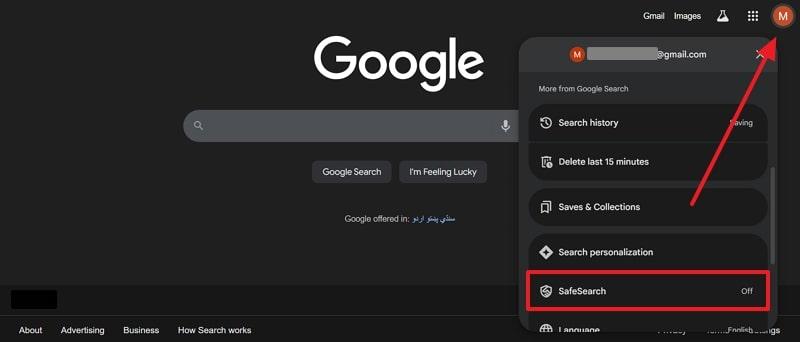
Step 1. Navigate to Google.com
Open Google.com on the browser and click the Profile icon to select the Safe Search feature.
Step 2. Enable the Filter Feature
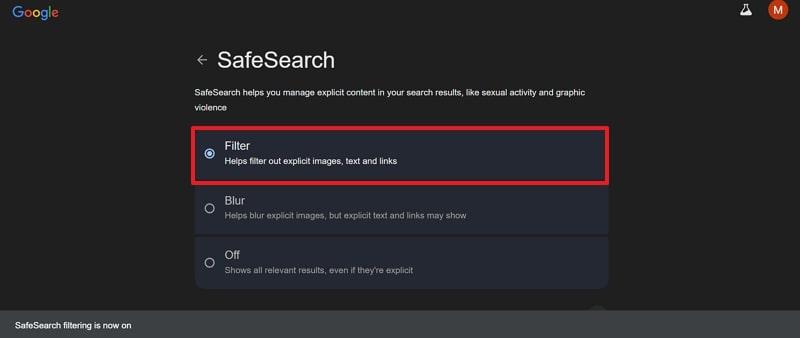
Following this, enable the Filter feature to block mature content.
Method 2: Add Restricted Sites in Chrome Settings
Adding restricted sites in Chrome settings also helps you block specific web pages manually. This method lets you decide which websites should not open in your browser. It is ideal for parents or individuals who want complete control over browsing access. You can easily add or remove sites anytime without needing extra tools or software. Thus, adhere to the steps below to learn how to block adult websites on a Google Chrome laptop:
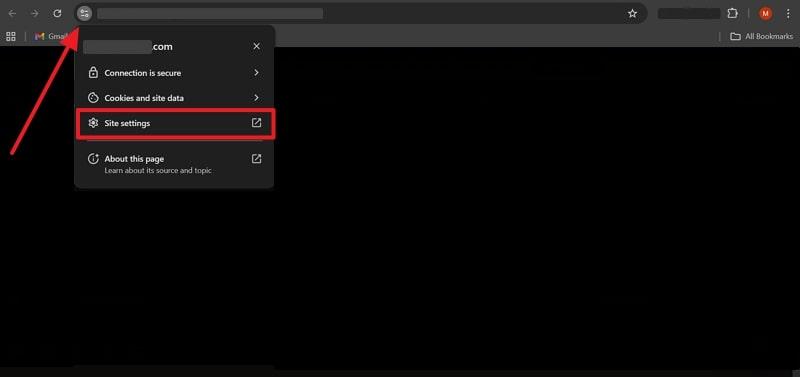
Step 1. Access Site Settings
Access the adult website and click the View Site Information icon to press the Site Settings option.
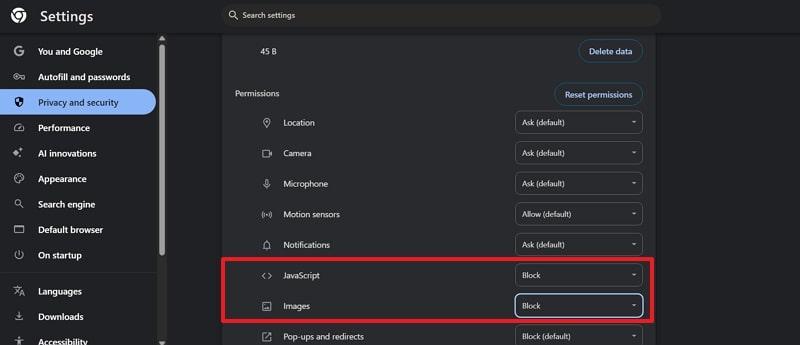
Step 2. Block JavaScript or Images
Subsequently, opt for the Block option for JavaScript or Images to block them.
Method 3: Use Google Family Link
This is a helpful and dedicated app that allows parents to guide children’s online activity. It helps manage screen time, along with blocking adult sites easily. Parents can control what their kids search for or download on Chrome and the Play Store. The app also lets families set browsing limits for safer and balanced internet use. Review the following steps to find out how to block adult content on Chrome Android:
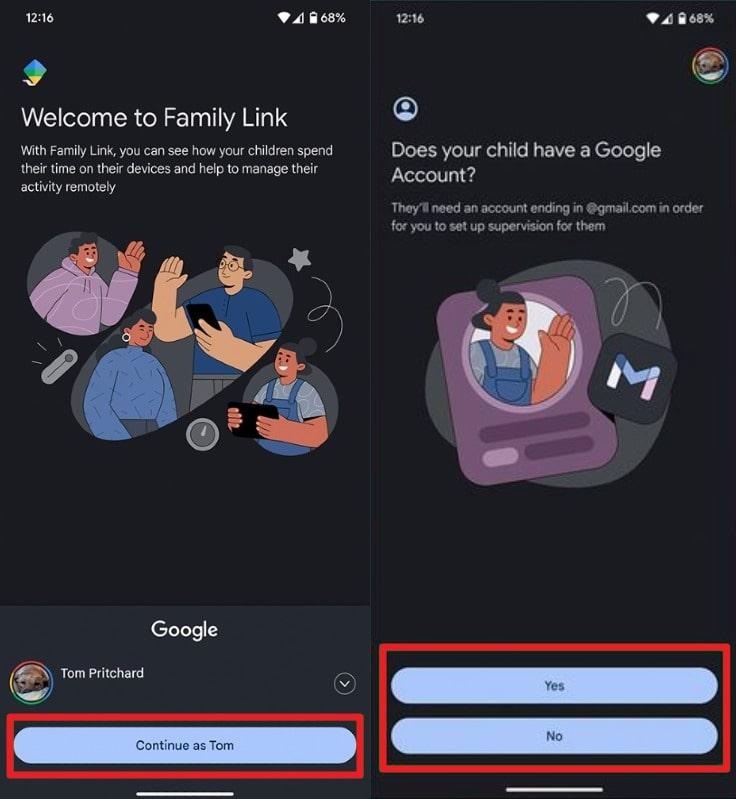
Step 1. Sign In to the App
Sign in on the app using your account and tap Yes or No to check the status of your child's account.
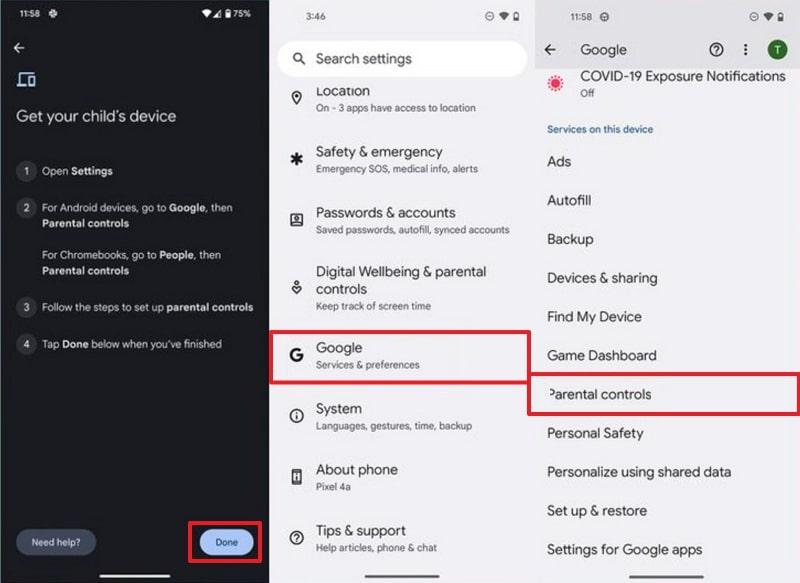
Step 2. Enable Parental Controls
On your child's phone, open Settings to access Google and tap Parental Controls to access monitoring features.
Step 3. Link Accounts
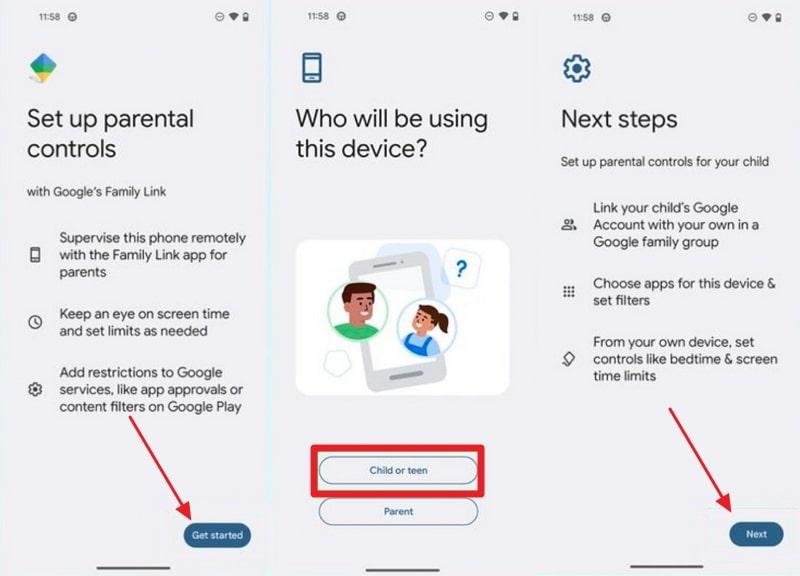
Subsequently, tap Get Started, choose Child or Teen, and press Next to begin linking both accounts.
Step 4. Complete Account Setup
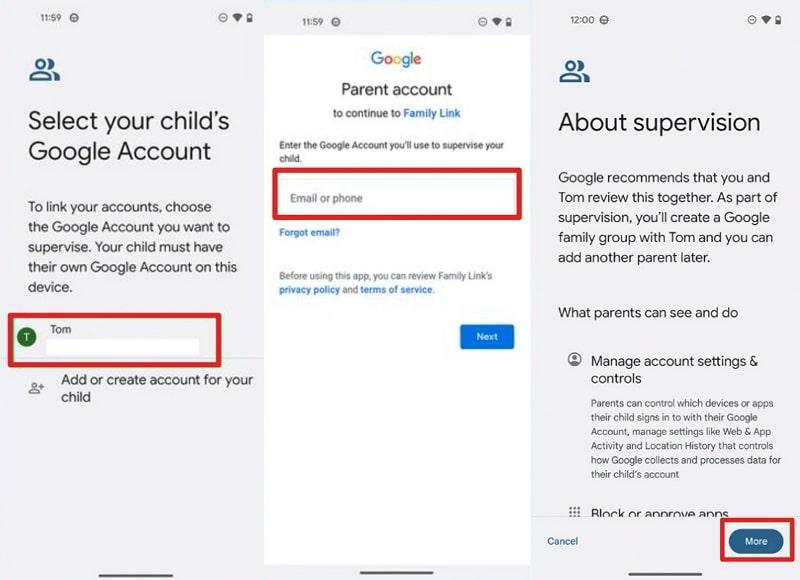
Afterward, select your child's account, log in using the parent's Family Link credentials, and accept all given terms.
Step 5. Configure Content Restrictions
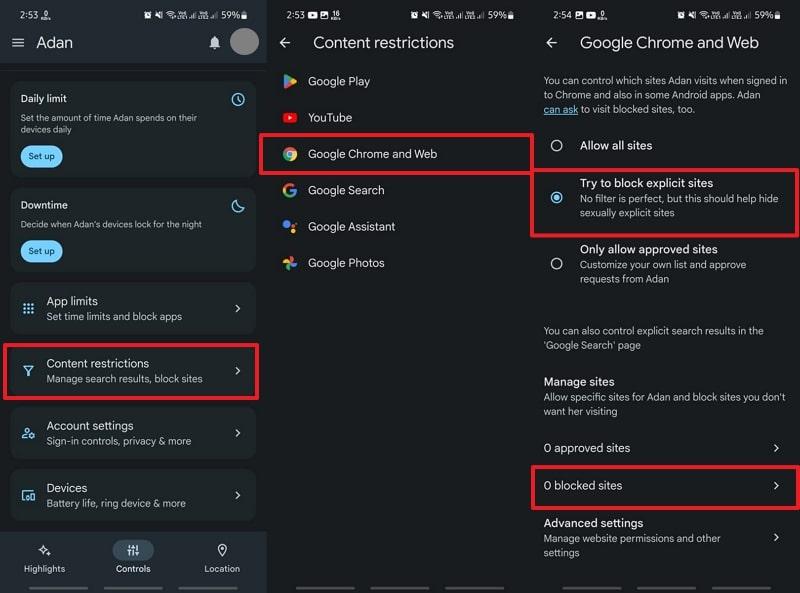
On the parent device, open your child's profile to select Content Restrictions and opt for Google Chrome and Web. Here, enable the Try to Block Explicit Sites feature and then head to Block Sites.
Step 6. Add Websites to Block
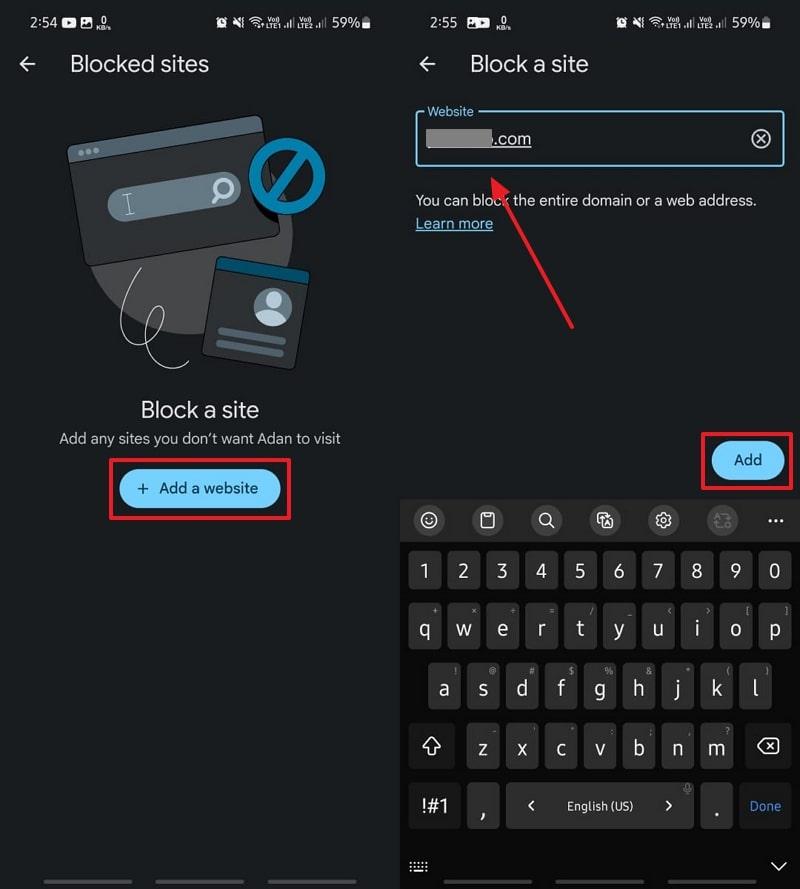
Upon heading to it, press Add a Website to enter the site's URL and press Add to block it.
Method 4: Configure DNS for Filtering
Configuring DNS for filtering helps block adult websites before they load on Chrome. This method changes the network settings to route traffic through safer domain name servers. It works on all devices connected to the network, not just one browser. Parents and adults can prevent access to unsafe sites automatically without constant supervision. You can go through the steps to understand how to block adult websites on a Google Chrome PC:
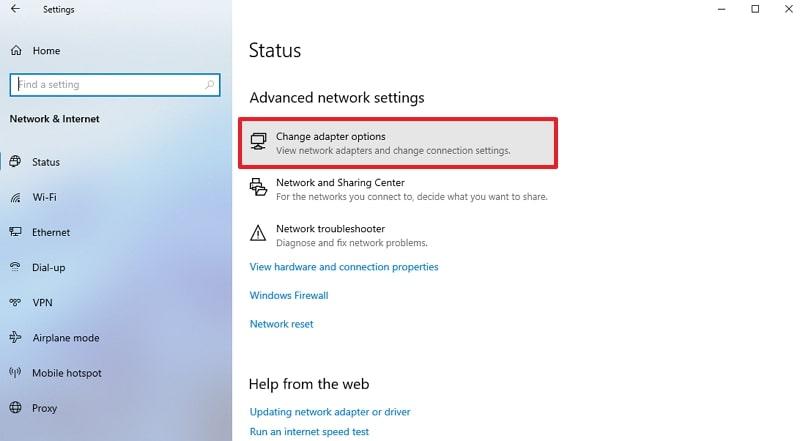
Step 1. Access Network Properties
Open Network Connections to click Change Adapter Settings and right-click your active network to select Properties.
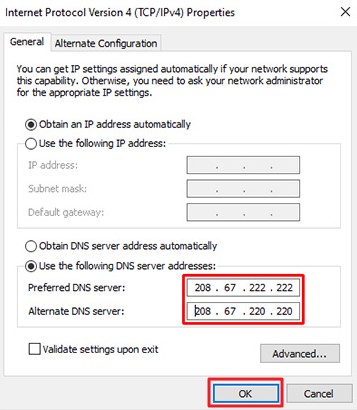
Step 2. Configure DNS Server Addresses
Upon seeing a new prompt, select Internet Protocol Version 4 (TCP/IPv4) and opt for Properties. Afterward, tick Use the Following DNS Server Addresses to enter 208.67.222.222 and 208.67.220.220 and click OK.
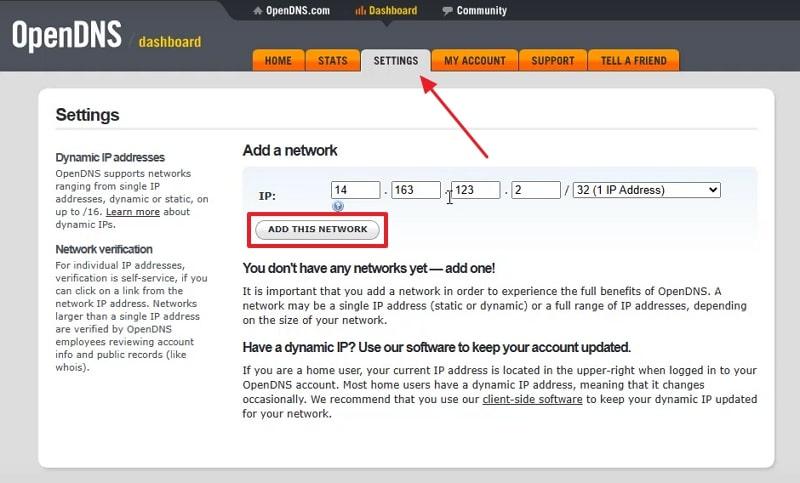
Step 3. Add Network to OpenDNS
Subsequently, log in to OpenDNS using your email to access its Settings, enter your network IP, and click Add This Network.
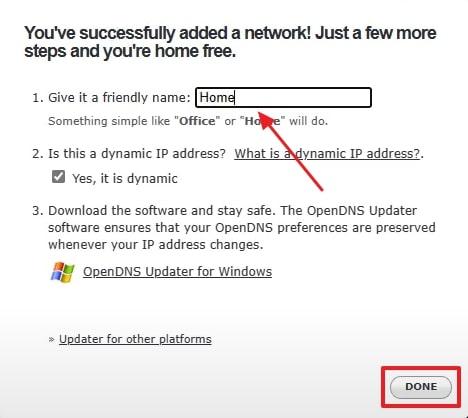
Step 4. Name Your Network
Here, assign your network a preferred name in the prompt and press Done to confirm the setup.
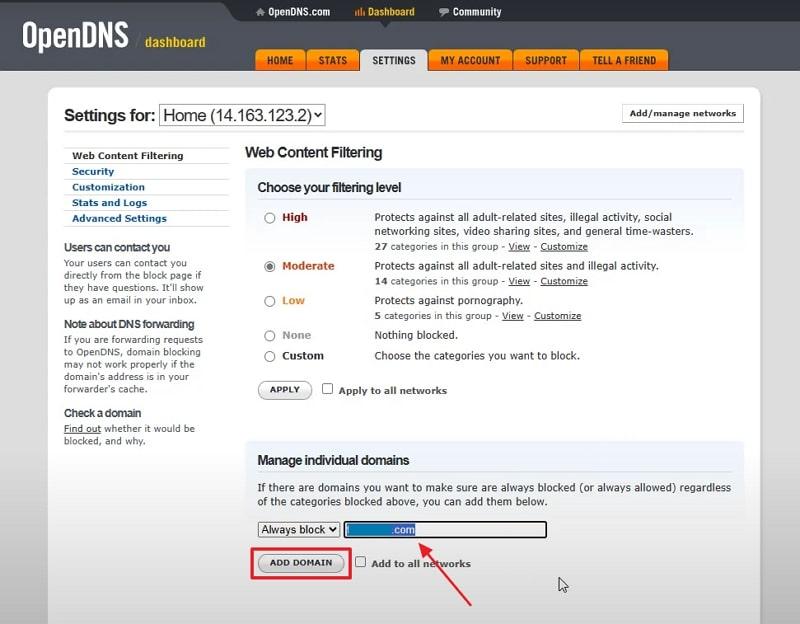
Step 5. Block Adult Websites
In your network settings, choose Always Block to enter the mature site URL and click Add Domain to block.
Method 5: Block Adult Content on Chrome with Extensions
Using extensions like BlockSite makes blocking adult content on Chrome very simple. These tools stop mature or unwanted websites from appearing during everyday internet use. Users can customize settings to block specific sites or categories of content easily. Plus, extensions work quietly in the background without interrupting normal browsing activities. Take guidance from the given steps to know how to block sex sites in Chrome:
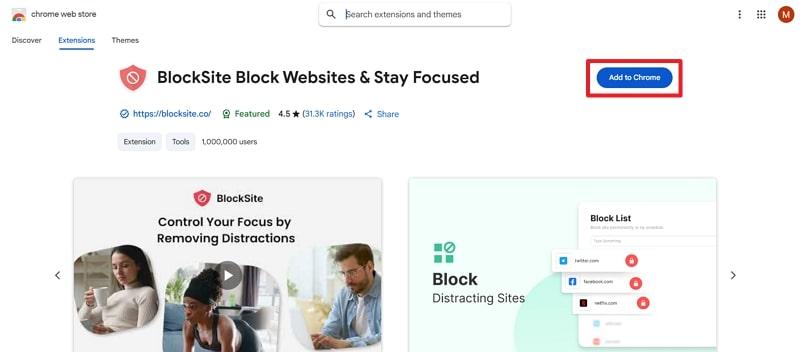
Step 1. Install BlockSite Extension
Access the adult content blocker extension like BlockSite on your device and hit the Add To Chrome button.
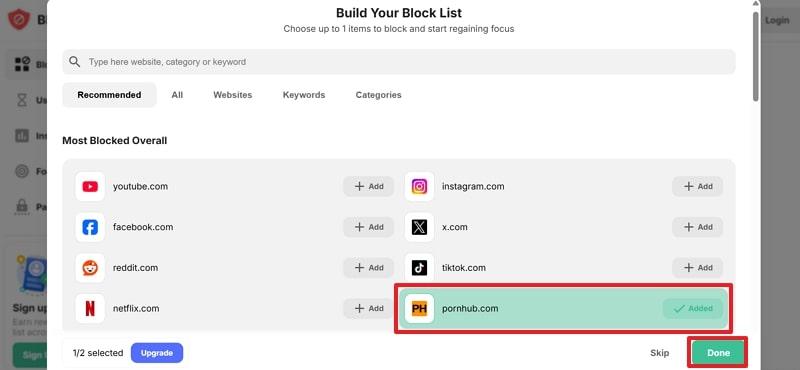
Step 2. Add Websites to Block
Upon downloading and accessing the main display, choose the adult website by pressing the +Add button. Afterward, click the Done button to block adult sites effortlessly.
Try FamiSafe, Block Unwanted Websites.
Part 3. How to Block Adult Websites on Chrome for Kids
When kids and teens use the internet, there is a risk of encountering mature content. As such, the mental and emotional consequence of such exposure is a source of concern for parents. Here, learning how to block adult websites on Google Chrome mobile is essential to create a safe space. To address this need, FamiSafe is a top parental control app that offers strong online child safety.
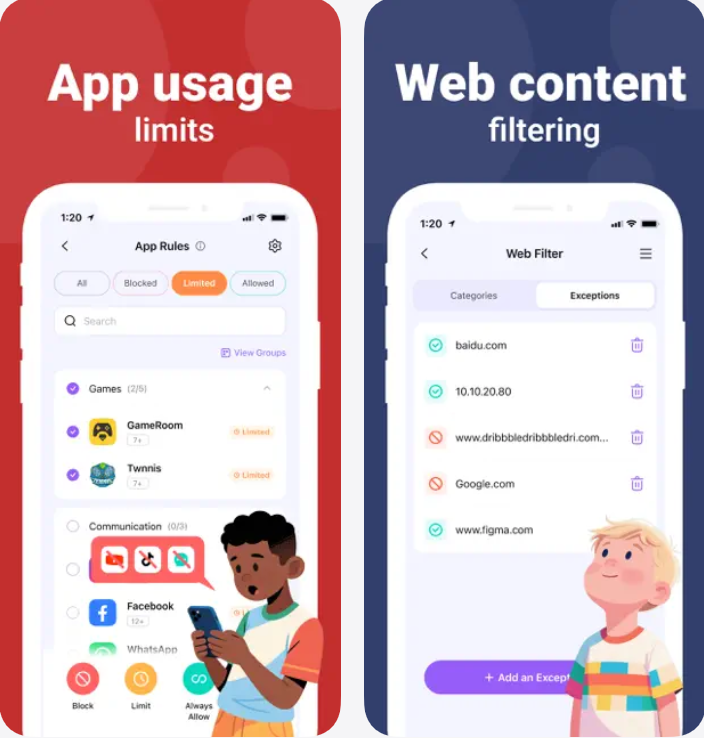
This dedicated app can automatically filter websites to block adult, violent, or harmful content. FamiSafe even lets parents view their child's browsing history, including private and incognito. Plus, it detects suspicious searches by alerting parents when kids look for harmful content. The app also enables Safe Search, which prevents explicit results from appearing in search results.
Key Features
- Allows parents to add specific websites to block or allow at any time, remotely.
- Let parents schedule screen time to effectively control daily device usage.
- Tracks app usage to ensure children are not accessing mature applications online.
- Monitors YouTube history and automatically blocks harmful or adult videos.
- Captures periodic screenshots of the child's screen for remote monitoring by parents.
Part 4. Which Method is Best to Block Adult Content on Chrome
The choice of how to block adult content depends on your browsing requirements. Some methods are simple, while others provide full control and monitoring features. Below is a comparison table between all the discussed methods while learning how to block adult sites on Chrome:
Conclusion
In conclusion, learning how to block adult content on Chrome helps protect children and adults online. It keeps browsing safe to stay focused and free from harmful distractions. Plus, anyone can easily prevent access to unwanted websites by using proper settings. For complete safety and easy control, using FamiSafe is the most reliable choice today.
Frequently Asked Questions
-
Q1. Can I block adult content on Chrome without installing any software?
You can enable Google SafeSearch to hide explicit images and videos automatically. It filters adult results directly from Google search and works on all connected devices. This native option provides a simple start for safe browsing without external tools. -
Q2. Does using DNS filtering affect my internet speed?
It does not generally slow down browsing or video loading noticeably. However, performance may depend on your chosen DNS provider and connection quality. Selecting trusted services like OpenDNS ensures balanced filtering and steady speed. -
Q3. How can parents monitor what their children search on Chrome?
Parents can use apps that track browsing history and report unsafe search activity. FamiSafe provides detailed insights into search patterns and automatically blocks inappropriate terms. It also sends quick alerts when suspicious keywords or searches appear during browsing sessions.