
How To Check Telegram Chat History [2026]
ALL TOPICS
- Social App Review
-
- Best texting app for kids
- ChatGPT Detectors
- ChatGPT Examples
- TikTok App Review for Parents
- ChatGPT Impact on Education
- Discord App Review
- Jailbreak ChatGPT
- Age for TikTok
- Dangerous Live broadcasting apps
- PopJam App Review for Parents
- Is Funimation Safe?
- Random video chat app
- Stranger chat apps review
- Anonymous chat apps for Teens
- Bigo live app review
- Is Google hangouts safe?
- Game Review
- Other Reviews

Oct 20, 2026 Filed to: Trending App Review Proven solutions

Want to find an older Telegram message? Use the search bar, open a recent conversation, or check Archived Chats. These methods help you view messages that are still available in your account. Deleted messages and device-specific Secret Chats work differently.
Below, we’ll walk you through how to see your Telegram chat history, find past searches and messages, export available chats on desktop, and understand what cannot be recovered.
Table of Contents
Part 1. Getting To Know Telegram Chat History
Before checking Telegram history, it helps to know that regular cloud chats sync across devices, while Secret Chats stay on the device where they were created. Here are the key distinctions:
- Cloud sync. Regular cloud chats are available across devices signed in to your account.
- Archived chats. You can archive older chats to keep your inbox organized.
- Deleted messages. Telegram lets people delete messages for both sides in one-to-one chats. Messages removed this way cannot be retrieved through the normal chat history.
- Search function. Search chats and messages by keywords, names, and available filters.
- Secret Chats. These are device-specific and do not appear on other devices. Logging out can permanently remove them from that device.
Part 2. How To View Your Telegram Chat History [4 Methods]
The design of Telegram makes it easy to find your past messages. You can look for a conversation from yesterday or a long-archived chat in a few taps. Explore 3 methods to view your Telegram chat history:
Use Telegram’s search to find available messages or conversations by keyword or contact name. Menu positions can vary by device and app version.
Step 1: Open Telegram and tap or click the search icon or search field on your chat list.
Step 2: Enter the name of the contact or a specific keyword related to the conversation you are looking for.

Step 3: The search results will appear below the search bar. Tap on the desired result to open the full chat history.
This method is effective, and it is most suitable for the situation when you are looking for a particular word or name.
If you are looking for conversations you have recently had, you can scroll through your recent chats. Here’s how:
Step 1: Open the Telegram app on your phone. All of your recent chats are displayed on the home screen. Scroll through them to find what you need.

Step 2: Tap on the conversation you want to revisit.
This method works well for chats that are still relatively fresh and have not been archived or deleted.
The archive feature of Telegram helps you organize your inbox while keeping fewer active conversations out of sight. Follow the steps below:
Step 1: Locate the Archived Chats folder, usually near the top of the chat list. If it is hidden, pull down on the chat list to reveal it when supported.

Step 2: Open Archived Chats and select the conversation. To move it back to your main list, use the unarchive option for your device.
This method is great for tidying up your inbox without losing any important conversations.
Method 4: Exporting Existing Chats on Telegram Desktop
If you need a copy of the messages still available in your account, open Telegram Desktop on a computer. Go to Settings → Advanced → Export Telegram Data, or open an individual chat’s menu and choose Export chat history. Available export formats include HTML and JSON. This is not a way to retrieve previously deleted chats or Secret Chats from another device.
Part 3. Can Anyone See My Telegram Search History?
Other Telegram users cannot open a private list of the terms you have searched for in your account. However, people who can access your unlocked device or signed-in sessions may be able to view your chats and recent activity.
Telegram does not provide a public search-history viewer for someone else’s account. Do not assume every trace of searches is invisible to anyone with access to your device. Review active sessions under Telegram Settings → Devices, and protect your account with a passcode and two-step verification.
Part 4. Troubleshooting Common Issues
While Telegram is a reliable messaging platform, you may still encounter some issues when trying to view or manage your chat history. Here are 5 common problems and how to solve them:
- Chats not showing up
Check that you are signed in to the correct account and look in Archived Chats. Do not log out as a first troubleshooting step: logging out removes device-specific Secret Chats from that device.
- Unable to access Archived Chats
If your archived chats are missing, ensure you are swiping correctly to reveal the archive folder. Alternatively, update the app to the latest version.
- The Search function is not working
Check your search keywords, app updates, and network connection. You can clear cached media if needed, but clearing the cache does not restore deleted messages.
- Missing messages
If a message was deleted for both sides, Telegram normally cannot restore it. Secret Chats are not stored in the cloud, so signing in on another device will not recover them.
- Sync issues across devices
Regular cloud chats should sync on devices signed in to the same Telegram account. Check internet access and the account used on each device. Secret Chats are device-specific and will not sync.
Part 5. Manage Telegram App Usage with FamiSafe
FamiSafe helps parents manage screen time, app activity, and supported safety features. It is not a complete Telegram search-history or chat-history viewer and cannot recover deleted Telegram messages.

Try for Free on Google Play and App Store!
Parental control features vary by device.
- Web Filter & SafeSearch
- Screen Time Limit & Schedule
- Location Tracking & Driving Report
- App Blocker & App Activity Tracker
- YouTube History Monitor & Video Blocker
- Social Media Texts & Porn Images Alerts
- Works on Mac, Windows, Android, iOS, Kindle Fire, Chromebook
Key Features of FamiSafe
- Screen Viewer
On supported devices, FamiSafe Screen Viewer can provide screenshots according to available settings and permissions. It should not be described as continuous, real-time access to every Telegram conversation.

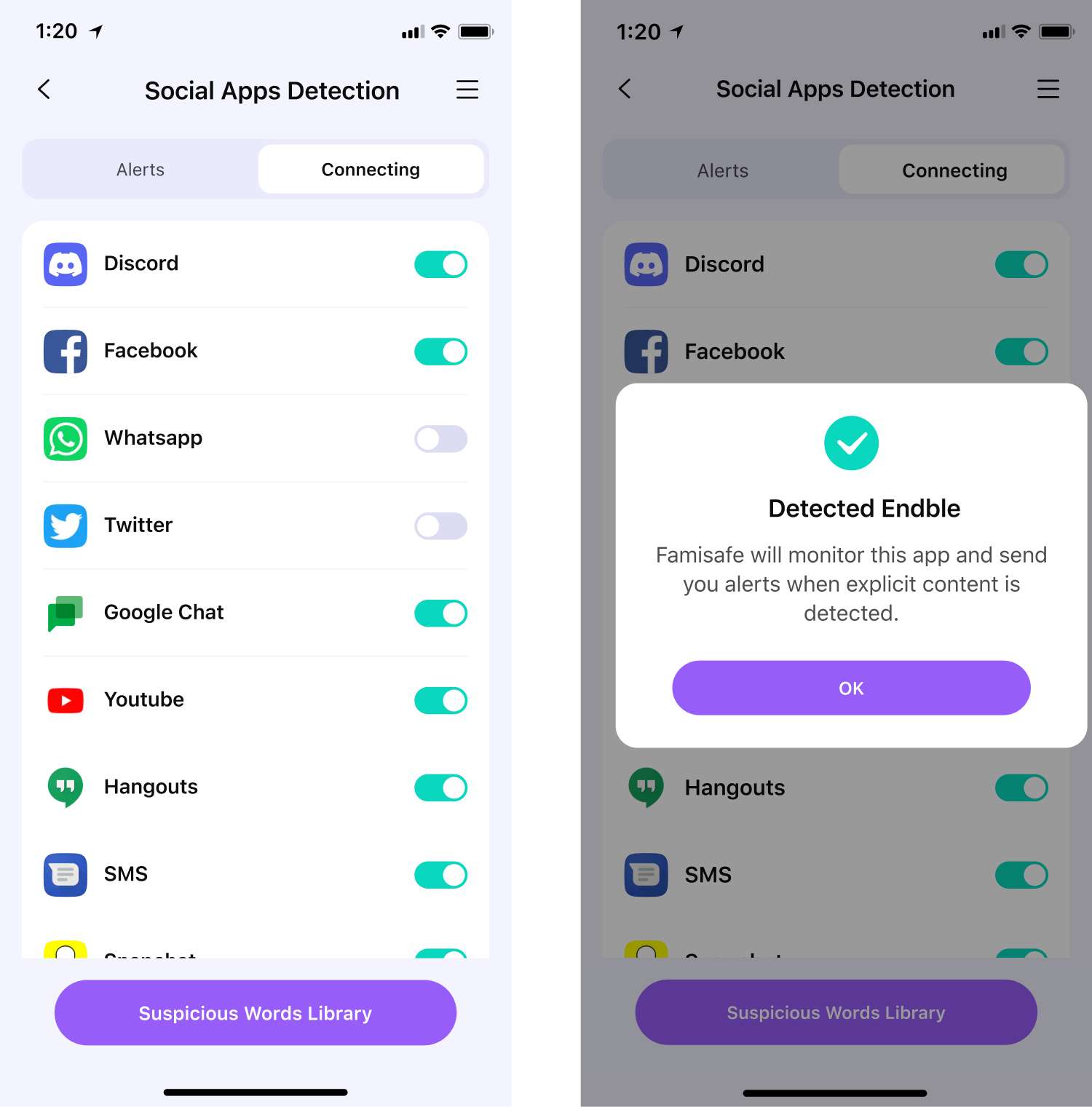
- Social Apps Detection
Supported content-detection features may flag certain suspicious text or images, depending on the device and enabled permissions. They do not provide complete access to Telegram messages or search terms.
- Screen Time Management
Set screen time limits and view detailed usage reports to understand how much time your child is spending on apps like Telegram. FamiSafe offers reports over different time frames. You can also set a downtime to block apps during certain hours.

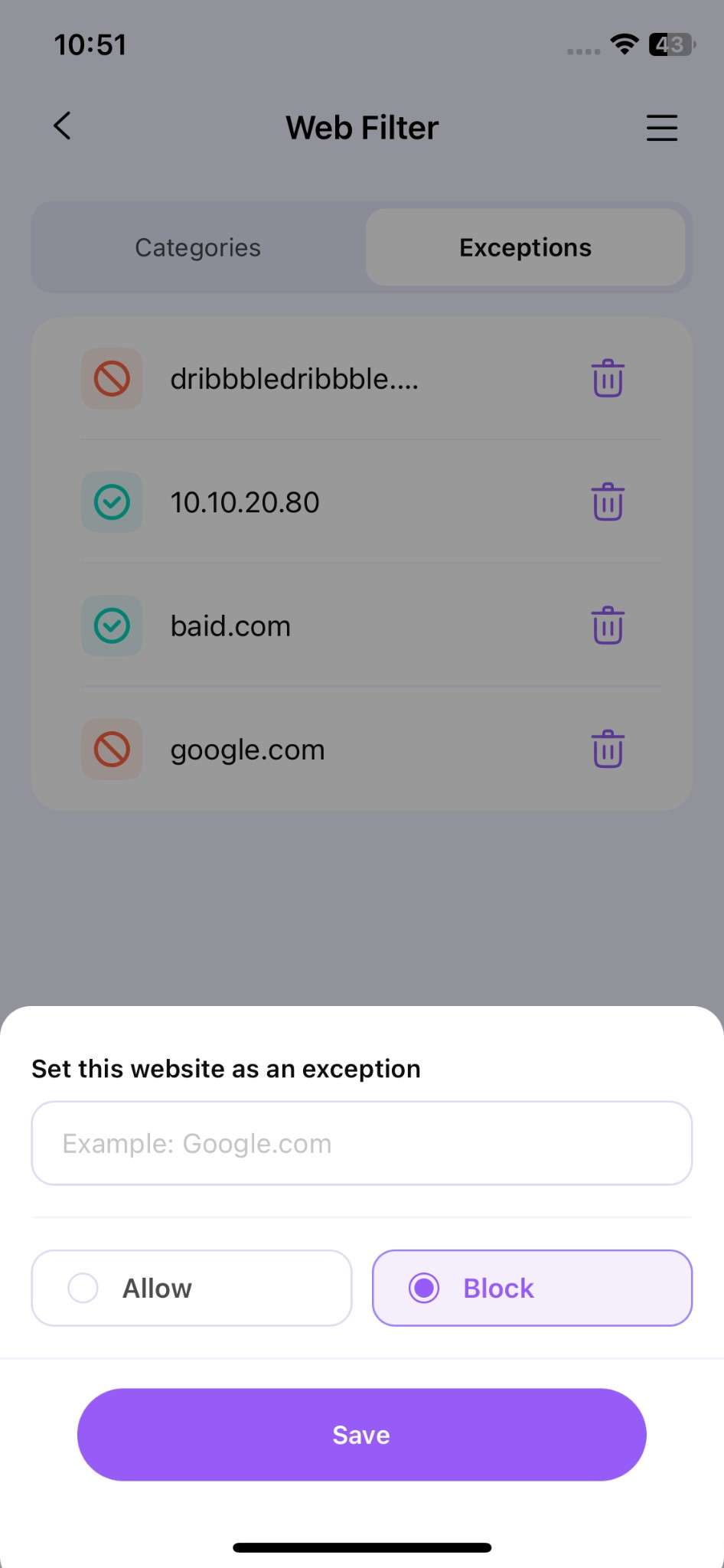
- Web Filter & Browser History
FamiSafe offers supported web-filtering and browser-history features. These do not provide a complete record of activity inside Telegram’s app.
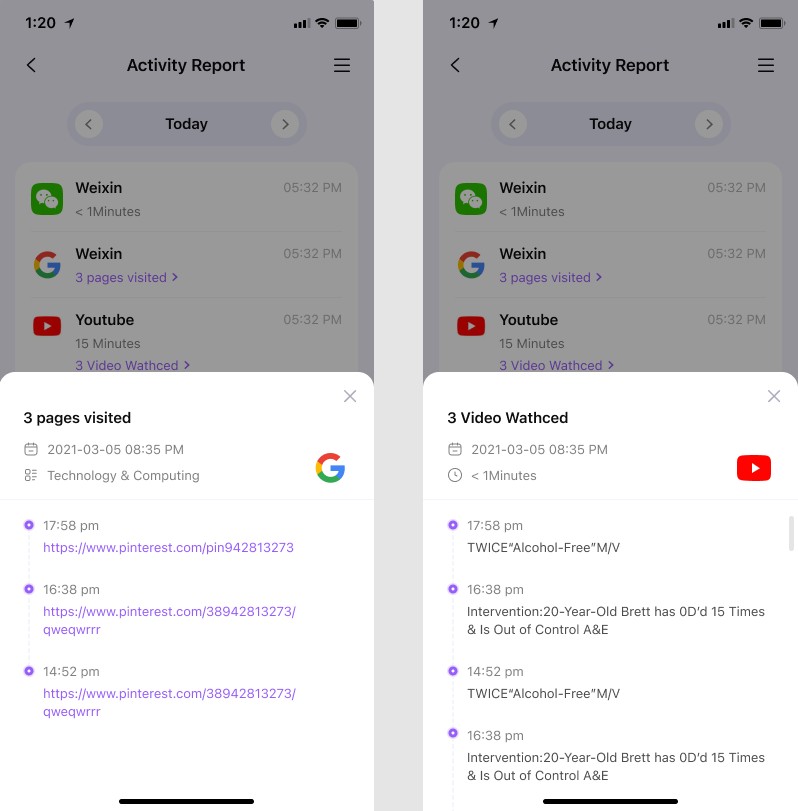
- Activity Report
Activity reports can help parents understand supported app usage, including time spent on Telegram. They are not an archive of the messages sent or received.
Use these tools alongside conversations about online privacy and healthy device habits. Their availability varies by device and operating system.
Conclusion
To view Telegram chat history, start with search, recent chats, and Archived Chats. Telegram Desktop also lets you export chat history that is still available. Deleted messages generally cannot be recovered, and Secret Chats do not sync across devices. For families, FamiSafe can help manage supported app activity, but it does not reveal a complete Telegram search or message history. Read more about Telegram safety for kids.
FAQ About Telegram History
How do I search my Telegram chat history?
Open Telegram and use the search field in your chats list. Search for a contact, group, or keyword. You can only find messages that are still available to your account.
Can I see my Telegram activity history?
You can review existing chats, archived conversations, and some recent app activity. Telegram does not provide a single, comprehensive timeline of every action or every search you have made.
Can I recover deleted Telegram messages?
Messages deleted for both sides are generally not recoverable through Telegram. Secret Chats are device-specific and cannot be restored through cloud sync.
Can I export my Telegram chat history?
Yes. Telegram Desktop lets you export available chats through Settings → Advanced → Export Telegram Data, or through an individual chat’s Export chat history option.

Moly Swift
staff Editor